How to Order Raising Cane’s Online

Ordering Raising Cane’s from home or on the go has never been easier. With the restaurant’s streamlined menu and digital ordering tools, you can customize your meal and pick it up hot without waiting in line.
This guide walks you through the entire process—from finding your nearest restaurant to paying securely and tracking your order. Whether you’re craving a Box Combo or planning a large family feast, here’s how to place an online Raising Cane’s order.
Why Choose Online Ordering at Raising Cane’s?
Ordering online offers several advantages over traditional in‑person ordering. First, it saves time—thanks to the Cane’s website and mobile app, you can skip the line and head straight to pick up your meal. Second, it puts you in control: you can browse the menu at your own pace, customize your order, and review nutritional information before checkout. Finally, using digital ordering reduces contact, which is helpful when you want a quick, hygienic experience.
Raising Cane’s encourages customers to order ahead through its app or website and even promotes curbside and drive‑thru pickups. The app lets you order ahead and pay from your phone, offers tasty tracking to ensure your chicken fingers are fresh when you arrive, and allows quick reordering by saving favorite meals.
Step 1: Find Your Nearest Cane’s Location
Use the Store Locator
Before you can place an order, you need to select a restaurant. Visit the Raising Cane’s website or open the mobile app and use the store locator. Enter your city or ZIP code to see a list of nearby locations. Choosing the right location ensures your order is routed to the correct restaurant for pickup or delivery. If you’re ordering a large family pack or catering meal, schedule at least 24 hours ahead to ensure availability.
Check Hours and Services
Not all locations offer the same services. Some restaurants have dine‑in and drive‑thru, while others provide curbside pickup or delivery. Before placing your order, confirm operating hours and service options through the store locator or on the ordering page. Online orders are only processed during a restaurant’s active hours.
Step 2: Choose How You Want to Order
Website, App, or Phone
Raising Cane’s offers several ways to place your order. You can:
- Order through the website or app – The official ordering platform lets you choose pick‑up or, at some locations, curbside. Simply visit the website or download the app, choose your location, and start building your meal.
- Call in for large orders – Tailgate packs for parties can be placed by phone or online. Scheduling 24 hours in advance is recommended for events.
- Use third‑party delivery apps – If delivery is available in your area, you can order Raising Cane’s through select partners. Raising Cane’s partners with services such as Uber Eats, DoorDash, Grubhub, Instacart, and Favor. Delivery availability and fees vary by location and platform.
For most customers, ordering through the Cane’s website or app provides the best experience. The app allows you to save favorite orders and offers quick reordering for future meals.
Step 3: Build and Customize Your Meal
Browse the Menu
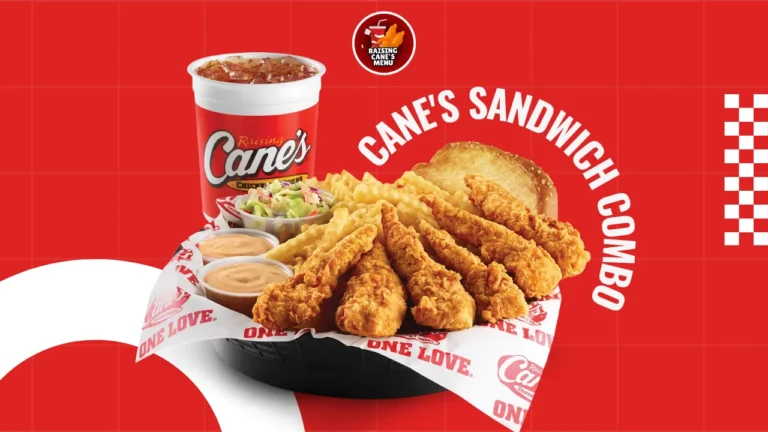
Once you’ve selected a restaurant, you’ll see the full Raising Cane’s menu. Choose from their popular Box Combo, 3‑Finger Combo, Caniac Combo, Sandwich Combo, or Kids Combo. You can also order extras like Texas toast, crinkle‑cut fries, coleslaw, Cane’s sauce, or additional chicken fingers. For family gatherings, order tailgate packs ranging from 25 to 100 fingers and add sides separately.
Customize Your Order
Raising Cane’s keeps its menu simple, but most locations allow small customizations. Customers can request extra sauce, swap sides, or remove coleslaw. You can choose additional drinks or extra crispy fries and adjust quantities to suit your appetite. When adding extras, the ordering interface usually shows price and calorie information so you know exactly what you’re getting.
Review Your Order
Before checking out, take a moment to review. Double‑check the quantity, chosen sides, and any special instructions. This step ensures your order arrives exactly as you want it. If you’re ordering a group meal, consider adding extra Cane’s sauce cups—each 1.5 oz sauce adds about 190 calories, so ordering fewer can reduce the meal’s calorie load.
Step 4: Payment and Checkout
Accepted Payment Methods
Raising Cane’s accepts a variety of payment methods for online orders, including major credit and debit cards such as MasterCard, Visa, Discover, and American Express. Most locations also accept Raising Cane’s gift cards and Apple Pay, and you can even split your payment into four interest‑free installments using Sezzle. However, cash is not accepted for online orders, only in‑store. Delivery apps may have different payment rules, so check the app’s payment options before finalizing your order.
Quick Reordering With Caniac Club
If you’re a Caniac Club member, you can save your payment details and favorite orders for faster checkout. Sign up in the app or at a restaurant to earn birthday rewards and occasional promotions. The app currently doesn’t support Apple Pay integration, so be prepared to pay with a stored card or gift card.
Secure Checkout
After selecting your payment method, follow the prompts to enter your details. Ensure the billing information matches the card you’re using and verify your contact information for order updates. Once you confirm, you’ll receive an order summary and, if you’ve chosen delivery, an estimated delivery time.
Step 5: Pickup or Delivery
Pickup Options
If you choose pickup, the app or website will display pickup instructions. Many locations offer curbside service—look for designated parking spots and check in via the app when you arrive. Others use a drive‑thru lane for online orders. At busier stores, skipping the line via the app can save significant time during lunch and dinner rushes. After paying ahead, you simply walk in or drive up, show your order number, and collect your meal.
Delivery Services
Raising Cane’s does not operate its own delivery fleet but partners with select third‑party platforms such as Uber Eats, DoorDash, Grubhub, Instacart, and Favor. Delivery availability depends on your location and the app you use. Fees vary, and menu prices may differ from in‑store or app pricing. When ordering through these apps, be sure to verify your address and choose a time window for delivery. Remember that you might not be able to customize your order as extensively as you can through the official app or website.
Tracking Your Order
The Cane’s mobile app provides real‑time updates—tasty tracking—so you know when your food is ready. If you order through a delivery app, use the app’s built‑in tracking to monitor driver progress. For curbside or drive‑thru pickups, the app typically tells you when to head to the restaurant. Use this feature to minimize waiting time and ensure your meal is hot and fresh.
Online Ordering Steps at a Glance
| Step | What to Do | Notes |
|---|---|---|
| 1. Find a location | Use the website or app store locator to enter your city or ZIP code and select the nearest restaurant. | Make sure the location offers pickup or delivery and check its operating hours. |
| 2. Choose ordering method | Decide whether to order through the Cane’s website or mobile app, call ahead for large orders, or use a third‑party delivery platform. | The app provides features like order ahead, pay ahead, and quick reordering. |
| 3. Build your meal | Browse combos, tailgate packs, and extras. Customize sides and sauce quantities to suit your taste. | Substitutions like swapping coleslaw for extra fries may be allowed. |
| 4. Review and pay | Check your selections, then pay with a credit card, debit card, gift card, Apple Pay (where supported), or Sezzle. | Cash is not accepted online; payment options may vary in delivery apps. |
| 5. Pickup or delivery | For pickup, follow in‑app instructions to curbside or drive‑thru; for delivery, use Uber Eats, DoorDash, Grubhub, Instacart, or Favor. | Use the app’s tracking features to know when your order is ready. |
Tips for a Smooth Online Order
- Order during off‑peak times. Lunch and dinner rushes (12–2 PM and 6–8 PM) can slow down service. Ordering ahead or scheduling pickup at non‑peak times avoids long lines.
- Customize wisely. While you can adjust sauce amounts, swap sides, or remove coleslaw, keep changes simple to ensure the kitchen can prepare your meal quickly.
- Review the order carefully. Check items, quantities, and special instructions before paying. Mistakes are easier to fix before you submit.
- Check payment methods. If you plan to use Apple Pay, confirm that your local store accepts it and note that the app itself doesn’t currently support Apple Pay.
- Use Caniac Club benefits. Sign up for the rewards program to save payment details and earn occasional freebies or birthday rewards.
- Plan ahead for big orders. When ordering tailgate packs or catering for a crowd, schedule at least 24 hours in advance to ensure the restaurant can accommodate your request.
Frequently Asked Questions
Yes. Most locations allow you to adjust sauce quantities, swap sides, or request no slaw. Customization options may vary by restaurant, so check during checkout.
No. Raising Cane’s partners with third‑party platforms such as Uber Eats, DoorDash, Grubhub, Instacart, and Favor for delivery. Availability depends on your location.
You can pay with major credit or debit cards, Raising Cane’s gift cards, and Apple Pay at some locations. The app also supports Sezzle for pay‑in‑four financing. Cash is not accepted for online orders.
Absolutely. Use the website or app to order tailgate packs and schedule pickup at least 24 hours ahead. For even larger events, calling the restaurant directly helps ensure your order is prepared on time.
Yes. The app is free and offers convenient features like order ahead, pay ahead, tracking, and quick reordering. It also provides access to Caniac Club rewards.
Conclusion
Ordering Raising Cane’s online is a convenient way to enjoy your favorite chicken finger meals without waiting in line. By using the official website or mobile app, you can locate your nearest restaurant, customize your order, and pay securely with various methods. Third‑party delivery apps add extra flexibility if you prefer to have your meal brought to your door. With features like order ahead, pay ahead, and tasty tracking, Raising Cane’s makes online ordering simple and reliable. Try ordering online today to experience hot, crispy chicken fingers and Cane’s Sauce delivered or ready for pick‑up at your convenience. Check also: Raising Cane’s vs McDonald’s Chicken